
Connect views and trace downstream
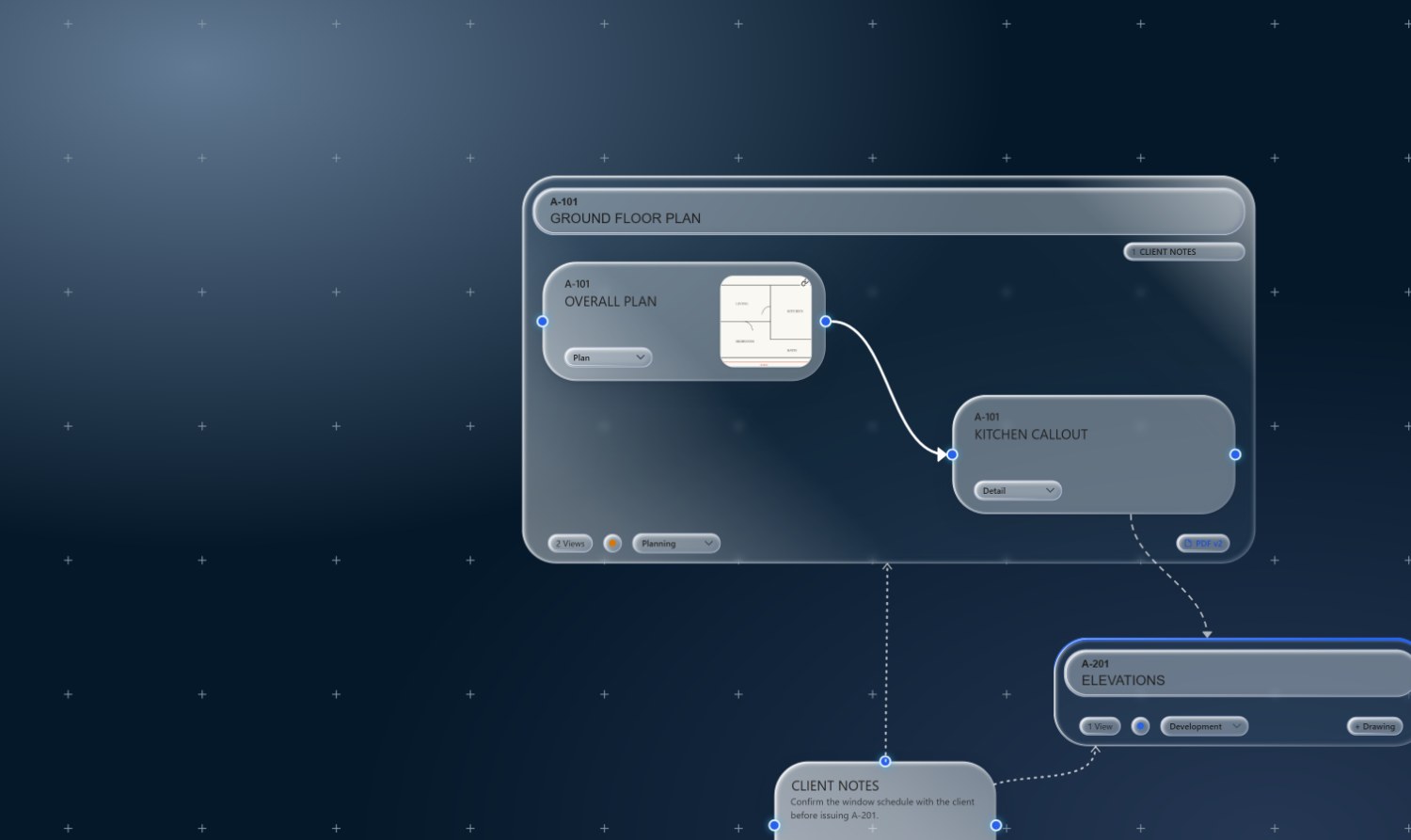
Details reference plans; plans reference each other. Draw those relationships as connections between views, then use trace to light up everything a change would touch.
Draw a connection
-
Hover a view
Move the pointer over a view to reveal its connection handles.
-
Drag from one view to another
Drag from a handle on the first view onto the second view. SketchWeave draws a wire between them. (Invalid targets are refused, so you can't accidentally connect something to itself.)
-
Repeat to build the web
Wire each detail to the plan it comes from, each plan to what it depends on, until the logic of the set is visible on the canvas.
Trace what's downstream
-
Select a single view
Click the view you want to trace from.
-
Open the main menu → Highlight Downstream Connections
It's under the Query heading. Everything downstream of that view lights up along the connection chain.
-
Clear it
Click the button again, or press Esc, to drop the highlight.
Prefer to pick on the canvas? With nothing selected, click Highlight Downstream Connections to arm the tool, then click any view, the hint pill reads "Click a view to highlight its downstream connections."
Delete a connection
With a wire selected, main menu → Delete Connections removes it. Or arm the tool with nothing selected and click any wire, "Click a connection wire to delete it."
See how the set holds together
Wire your views, then trace a change before you make it.