Connect SketchWeave to Autodesk Forma
Link a SketchWeave project to a Forma project and your sheets pull in the PDFs published from your Revit models, so the canvas always references the current drawing, with no manual exports.
Add SketchWeave to Forma , account admin, one time
Forma keeps third-party apps out by default: a Forma account (hub) is invisible to SketchWeave until an account administrator adds SketchWeave as a custom integration, identified by its Client ID. Do this once per Forma account and everyone on it can then connect and link projects. It's the same step Autodesk documents for granting any Autodesk Platform Services (APS) app access to a Forma account.
-
Open Account Admin in Forma
Sign in to Forma with an account that has account administrator rights, then open Account Admin.
-
Go to Custom Integrations, then Add custom integration
Forma opens a dialog asking for the app's Client ID, a name, and a description.
-
Enter SketchWeave's Client ID and details
Paste the Client ID below, set the Custom integration name to SketchWeave, and add a short Description (for example, "SketchWeave, drawing-set planning; syncs published sheet PDFs"). Forma hides the Client ID after the integration is created, so it helps to paste it into the description too.
SketchWeave Client IDZRJH7R1J8DVqqw1Ub0V4IVcabsZXQekwz1gIuUhuucvX1DDz -
Save
SketchWeave can now see the projects under this Forma account. This same Client ID works for every SketchWeave customer, it's SketchWeave's public app identifier, not a personal secret. Each person still connects their own Autodesk account next.
Connect your Autodesk account
-
Open Manage Account
From the project home screen, open Manage Account.
-
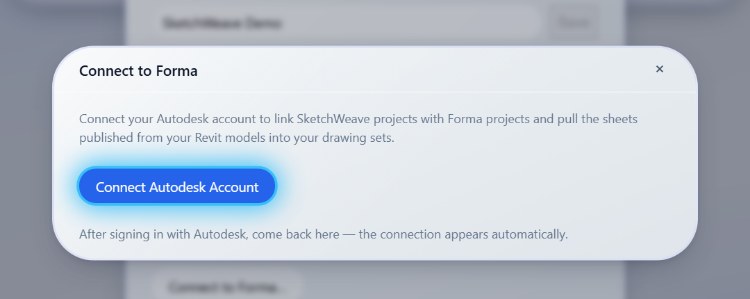
Click Connect to Forma… then Connect Autodesk Account
Sign in with Autodesk in the tab that opens.
-
Come back to SketchWeave
The connection appears automatically as "Connected as …", no need to refresh.
Link a project
-
Pick a pair
In the dialog, choose a SketchWeave project and the Forma project to pair it with, then click Link.
-
Confirm the prompt
Linking makes Forma the source of truth for matched sheet numbers, the one consequence worth acknowledging up front.
Choose how it syncs
- Manual only, sync on demand with Sync now.
- Every hour, a scheduled job keeps it current on its own.
Syncing scans the Forma project's Docs for published Revit models (the Design Collaboration workflow), matches their sheet numbers against your project's sheet numbers, and imports each newly published sheet PDF as a drawing version. Forma takes priority on matched sheets: a manually uploaded drawing is overridden by the Forma version on every sync (it stays in the version history). Unmatched Forma sheets are reported, never auto-created. Sheet PDFs require models published from Revit 2022 or newer.
Reference the live model, not a stale export
Connect Forma once and your canvas always points at the drawings published from Revit.