
Plan a submission and hit Assemble
Lay out the set for a deadline, tag the sheets that belong in it, then assemble every drawing, latest version, correct order, into one PDF in a single pass.
Create a submission
-
Open the sheet list → Submissions
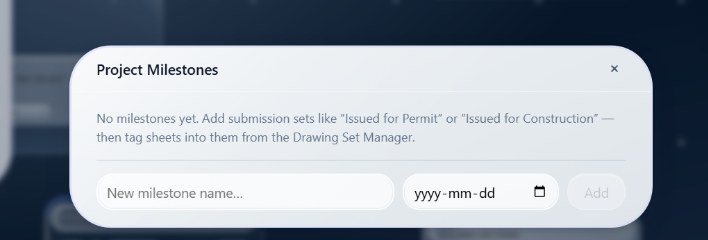
Click the sheet button on the dock rail, then Submissions, the Project Submissions dialog opens.
-
Add a submission
Name it, like Issued for Permit or Issued for Construction, with an optional submission date, and click Add.
Tag and order the sheets
-
Open the sheet list → Drawing Set Manager
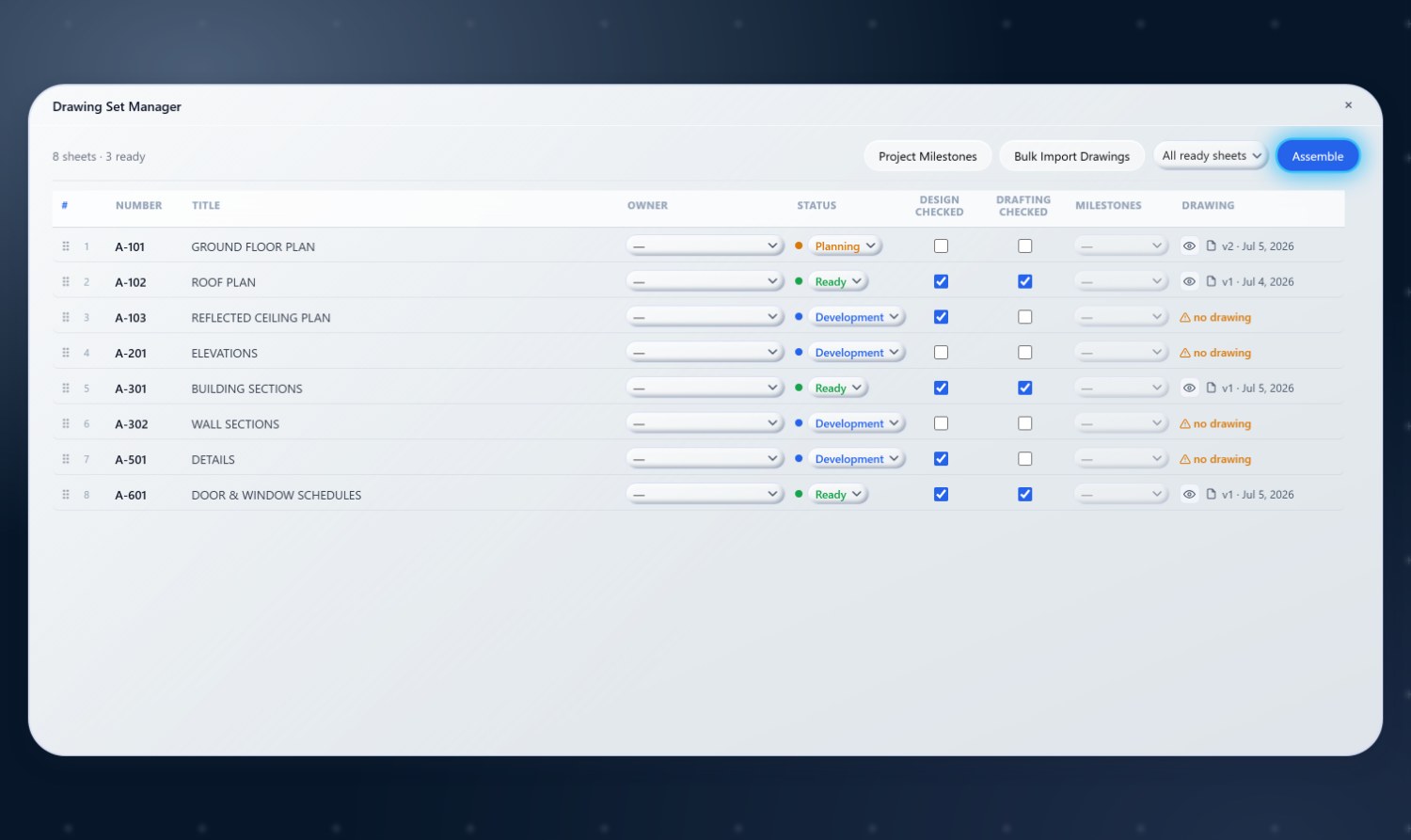
This is the packaging console, sheet order, owners, status, QA/QC checks, submissions, and assembly, all in one place.
-
Tag sheets into the submission
For each sheet that belongs in the set, tag it into the submission in its row.
-
Drag to set the order
Reorder sheets in the manager, that's the exact order the assembled PDF uses.
Assemble
-
Choose which set to assemble
Pick the classic "all ready sheets," or a specific submission. When a submission is selected, the manager shows how many sheets are in that set.
-
Click Assemble
SketchWeave merges every ready sheet's current drawing, in order, into one PDF.
-
Read the summary
It tells you how many sheets were assembled and lists any it skipped, so nothing goes out half-baked.
Issue the set in one pass
Plan the submission, tag the sheets, and let Assemble build the PDF, in order, at the latest version.