
How sheets auto-fit their views
You never resize a sheet in SketchWeave by hand. Each sheet automatically grows and shrinks to wrap the views inside it. Here's why, and how to keep your layouts tidy.
Why sheets fit themselves
A sheet's whole job is to hold views. If you could size it independently, its dimensions would constantly drift out of step with what's actually on it. So SketchWeave keeps every sheet tight to its views: add a view and the sheet expands to include it; move or delete views and it recomputes its bounds. There's no manual resize handle, and nothing to keep in sync by hand.
What that means for you
- Arrange views, not sheets. Drag views to where you want them; the sheet follows.
- Moving a view re-fits its sheet around the new arrangement, right away.
- The header always has room. A sheet reserves space at the top for its number/title bar, so labels never overlap the drawings.
- An empty sheet sits at a sensible default size until you add the first view.
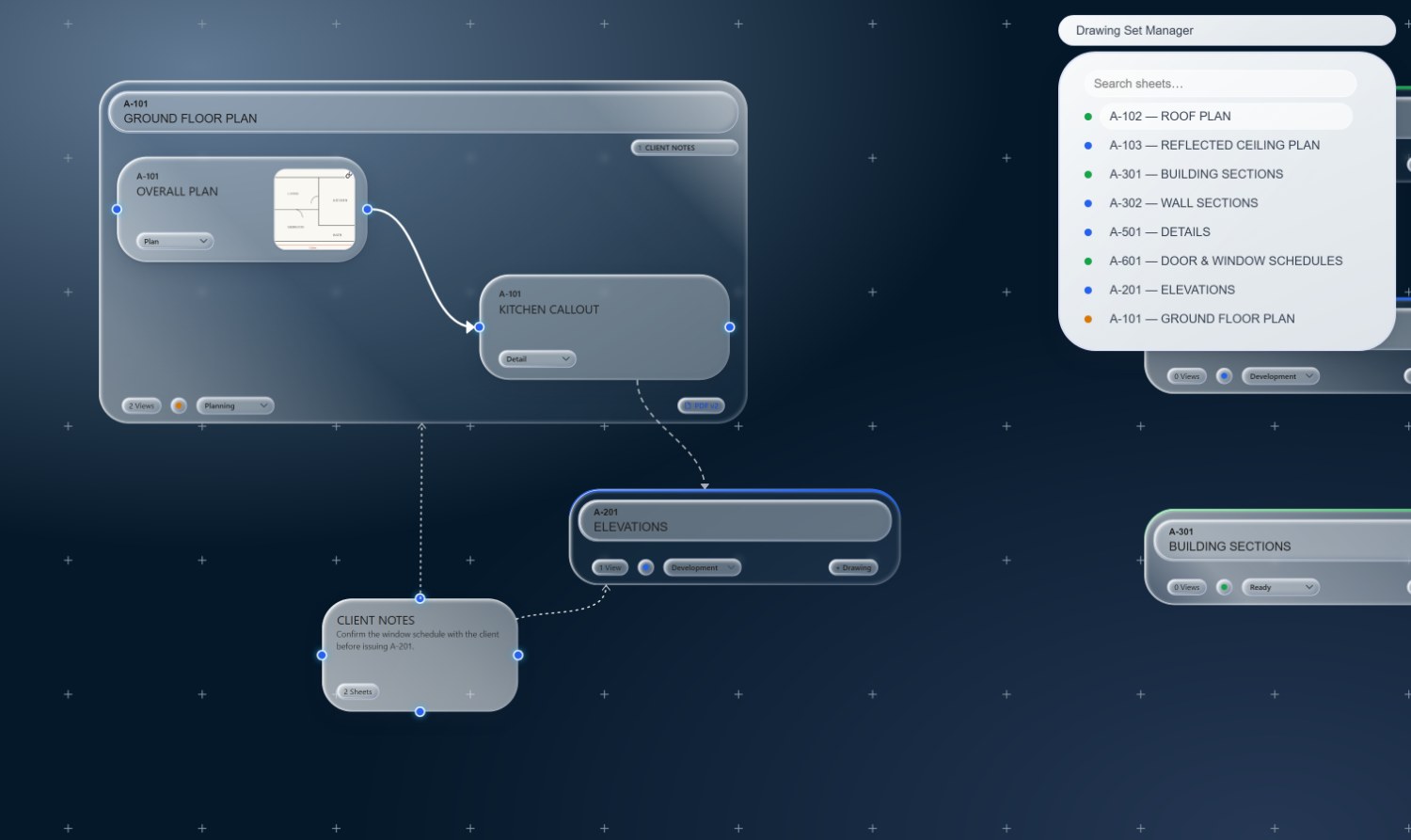
Move a view to another sheet
Sometimes a view belongs on a different sheet. Select the view, open main menu → Move to Sheet…, and pick the destination. Both the old and new sheets re-fit automatically around their new contents.
Let the geometry sort itself out
Arrange your views and SketchWeave keeps every sheet tight around them, automatically.