
Invite teammates and share projects
Team Pro turns SketchWeave into a shared workspace: an organization with a common project space, teammate invites, and in-context messaging. Here's how to set it up.
Create your organization
-
Open Manage Account
From the project home screen, open Manage Account (or start Team setup).
-
Create an organization
Give it a name and a seat count, then complete the per-seat checkout. Every seated member gets the full Team Pro level alongside their own personal space.
Invite people
-
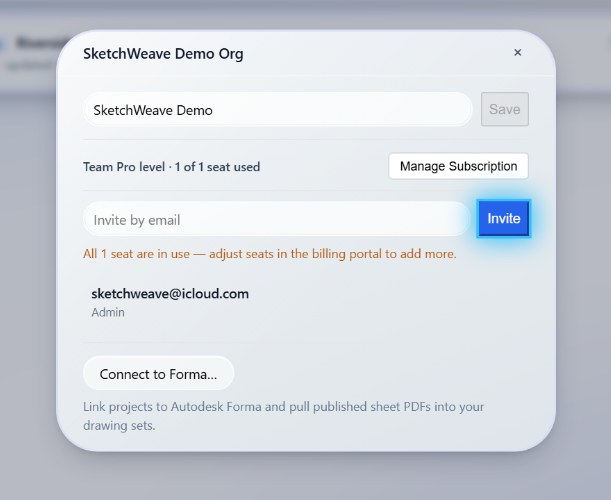
Use Invite by email
In Manage Account, enter a teammate's email and send the invite. (Invites are an admin action.)
-
They accept
The invitee sees the invitation on their own project home screen and accepts it, the shared space then appears alongside their personal projects.
You can invite up to your seat count; N of M seats used shows your headroom. When seats are full, adjust them in the billing portal, see Manage seats and billing.
Share a project with the organization
-
Move a personal project in
Personal projects start private. To share one, open its card on the home screen and choose Move to organization (the ⇧ Org control). Confirm, and everyone in the org can open and edit it.
-
Or start it shared
Projects you create from the Organization filter are shared from the start.
Team projects also include in-context messaging, so discussion lives with the set instead of in a separate thread.
Share the set, not just the file
Bring your studio into one organization and give everyone the whole set to work from.